3D Printing with Windows

Introduction (5 minutes)

  • Welcome to Conejo Valley Makerspace, I’ll be covering 3D printing on Windows 11
  • Programs used for creating 3-D Models: 3D Builder on Microsoft, Meshroom, Thingiverse, OpenSCAD
  • My experience with 3D printing.
    • printing things for use around the house.
    • printing toys
    • printing connectors
  • Windows 11 as a  platform for 3D printing
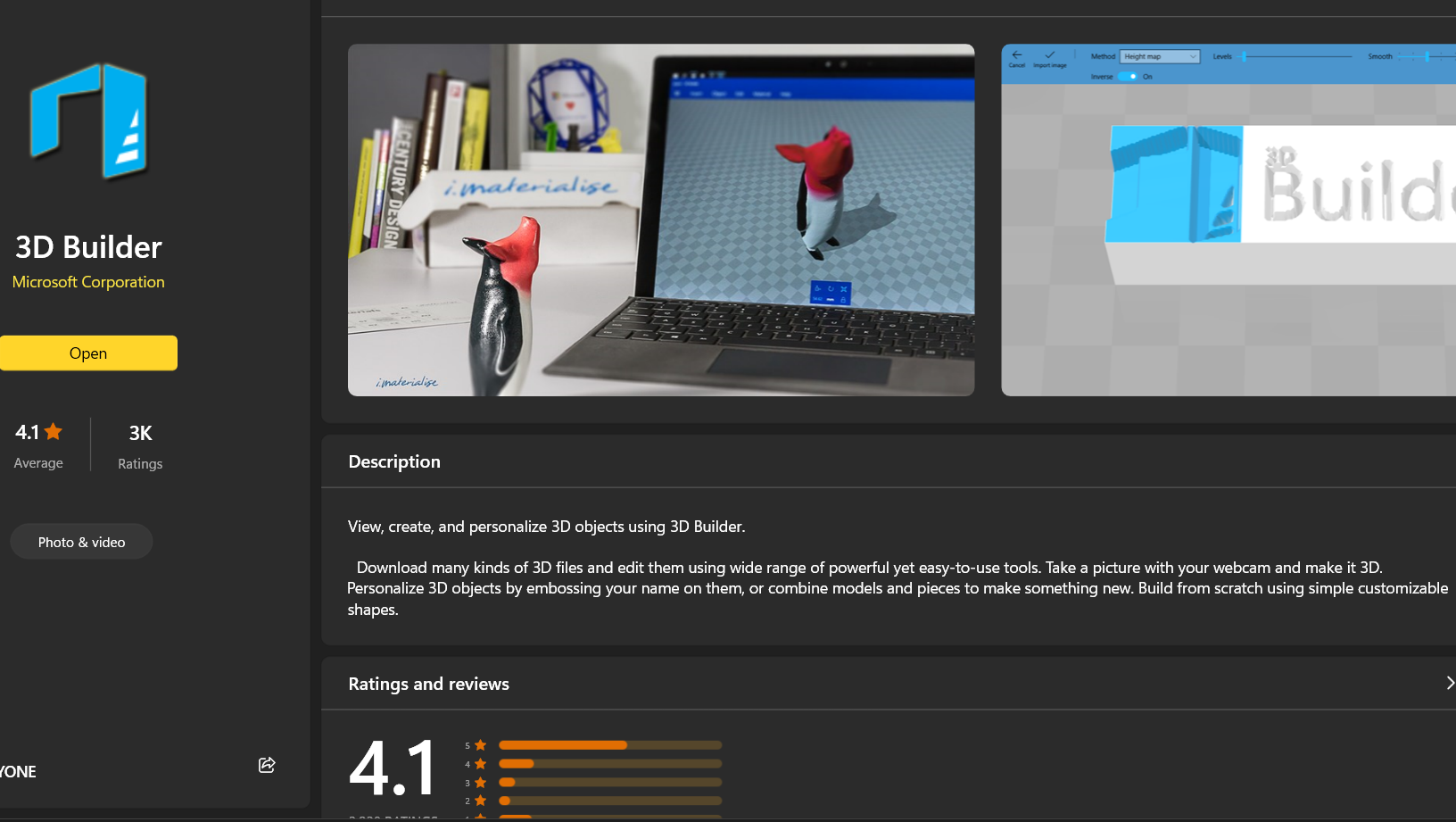
    • use mostly 3D builder to create .3mf files
    • use existing stl files or export using 3D builder
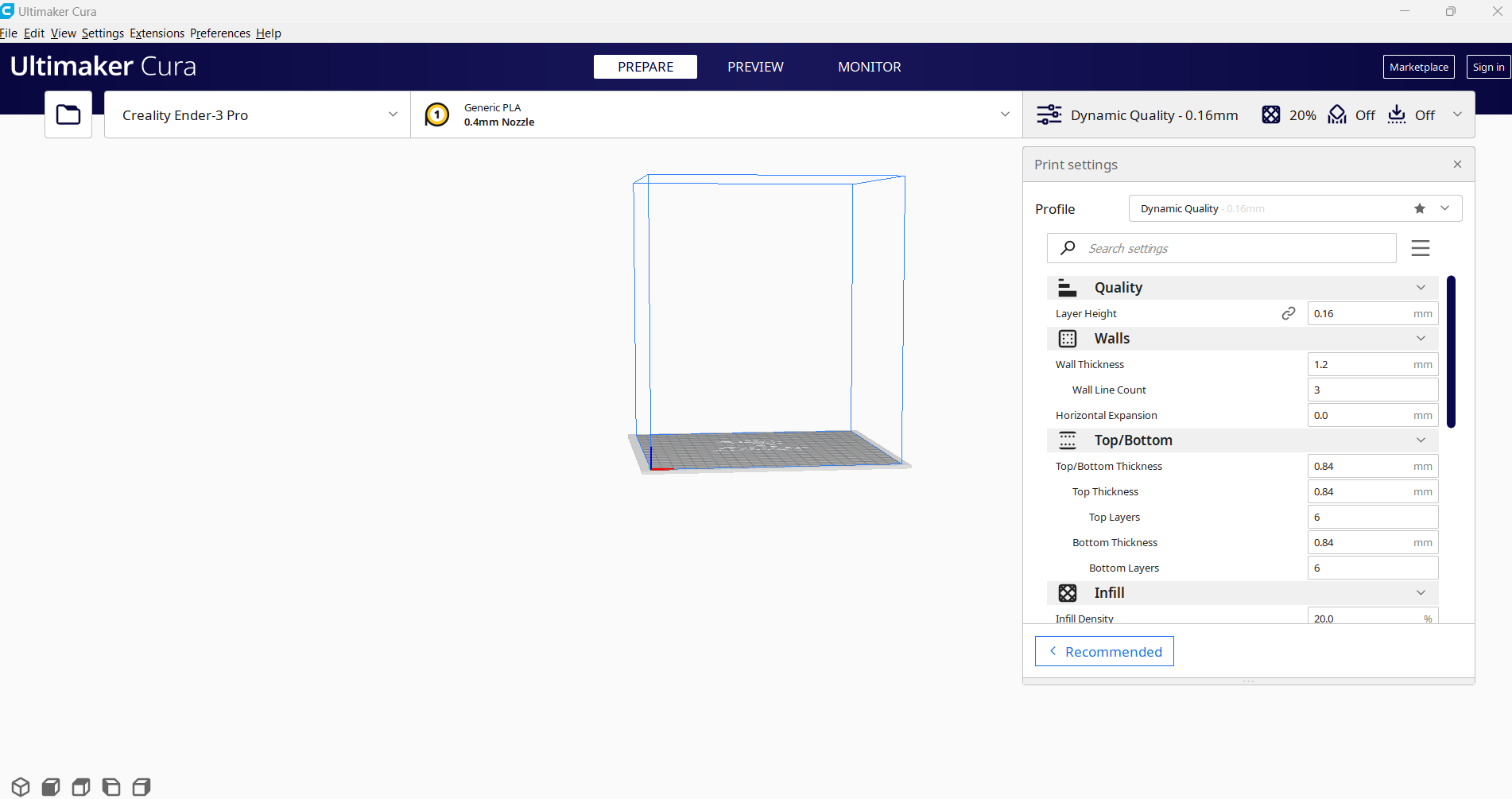
    • slice using Cura
    • Demo will use a png to create 3D model
  1. What Is 3D Printing?
    • 3D printing is additive manufacturing
      • start with empty space and fill it in with material
      • print orientation will determine if supporting fill in will be required, you can’t print onto air, so structure must be part of the 3-d print or added and removed after printing
    • Cura creates machine instructions for the printer
      • Layer-by-layer production process
      • instructions differ based on printer and type of filament
      • Quality of Print, amount of material to use, size of outer facing structure… can be set and the more material and movements required the more time it will take to print
  2. Types of 3D Printing Technologies
    • Stereolithography (SLA), I use a Creality Ender 3 pro printer, Lowest Price printer that Creality Produced, It consist of a Power Supply, Control Board, Display Board, Frame, Print Bed, Single Filament Exruder, and tensioner. It can use PLA, PETG, and ABS filaments.
    • Fused Deposition Modeling (FDM)
    • Selective Laser Sintering (SLS)

Getting Started with Windows 3D Printing Tools (20 minutes)

  1. 3D Modeling Software
    • Creating and modifying 3D models using an image
    • Importing existing designs
  2. Windows 3D Builder
  3. Slicing Software: Cura
    • Preparing models for printing and displays relative size of Printing on the 3D printer selected
    • Settings can be adjusted to get the Print desired. Fast-Low Quality, Slow Low Quality or High Quality after fine tuning settings.

Live Demonstration (10 minutes)

  • Walkthrough of a simple 3D printing process using Windows 11
  • Creating a 3D model
  • Slicing and generating G-code
  • Sending the print job to the printer

Best Practices and Troubleshooting (5 minutes)

  • Tips for successful 3D prints
    • Adhesion to print surface… Use Something Sticky like Glue
  • Common issues and how to address them
    Bed Zero Leveling, Adjust the print surface after removing anything that is part of the bed or any surface
  • Resources for further learning

Q&A Session (5 minutes)

  • Open floor for questions and discussion

Leave a Comment

Your email address will not be published. Required fields are marked *